Best WiFi analyzer app for Windows in 2026
Get yourself an efficient WiFi analyzer for Windows and create a perfect wireless environment where you will feel comfortable in any chosen spot.
WiFi signals can be pretty unpredictable. You’ve likely noticed how the WiFi signal indicator on your smartphone or laptop can drop from full bars to almost nothing just by taking a few steps in the wrong direction. Like many of us, you probably have a mental map of your home’s WiFi coverage, helping you avoid those annoying dead zones.
Perhaps you’ve even moved the couch so that you could enjoy fast download and upload speeds in your living room. What if we told you that you could avoid this madness with the help of a WiFi analyzer app for Windows? You can, and we’ve prepared a list of top 5 best WiFi analyzer Windows apps for your convenience.
Jump to...
Why Use a WiFi Analyzer for Windows?
Your router may promise perfect coverage throughout your home, but in reality, the signal rarely reaches the far corners intact. Walls, furniture, interference from appliances, and even neighboring networks — all of these things eat up speed and distort the signal. So it turns out that even the most powerful router on paper behaves quite differently in reality.
It's important to understand: Wi-Fi isn't a static picture, but a constantly changing environment. New gadgets appear, technologies upgrade from Wi-Fi 5 to Wi-Fi 6 and Wi-Fi 7, and sometimes even moving a sofa or buying a new smart TV in the bedroom can upset the delicate signal balance.
Therefore, if your internet starts to lag or dead zones appear in your apartment, it's not always a bad router. That's just how wireless networks work.
In such a situation, a Wi-Fi analyzer for Windows is no longer a geek's whim, but a necessity. Tools like NetSpot let you see your network performance in real time. You literally visualize signal strength, identify sources of interference, and identify weak spots in coverage. Instead of guessing and randomly relocating your router, you get a clear picture of where exactly to move it and what channel to switch to.
Ultimately, if a stable connection is important to you — for work, gaming, or just a movie night without constant loading — a Wi-Fi analyzer like this is a must-have in your digital arsenal. This is the easiest way to make Wi-Fi work the way it should, not the way it's supposed to.
Top Wi-Fi Analyzer Apps for Windows: Which One to Choose?
The ideal Wi-Fi analyzer is different for everyone — it all depends on your goals. Some people simply need to eliminate dead zones in their apartment, while others need to properly configure a network for an entire business. To save you time, we've curated a selection ranging from professional-grade software to intuitive, one-click programs.
- NetSpot — a top pick for both pros and beginners. It’s great for setting up home networks and works just as well for corporate environments with its easy-to-use interface and rich set of tools for network analysis.
- InSSIDer — a tried-and-true WiFi analysis tool that’s been around for years, earning a solid reputation among business users for its reliability.
- WiFi Analyzer — a free, easy-to-use app that’s perfect for home users, providing essential features for checking channel usage and signal strength.
- Vistumber — stands out with its GPS support and Google Earth integration, making it ideal for mobile use and analyzing WiFi networks on the go.
- Wireshark — a go-to for IT professionals, offering deep packet analysis and in-depth diagnostics for network protocols, although it may take more time to master.

Choice #1

NetSpot
WiFi analyzer app runs on a MacBook (macOS 11+) or any laptop (Windows 7/8/10/11) with a standard 802.11be/ax/ac/n/g/a/b wireless network adapter. Read more about the 802.11be support here.
NetSpot is the only professional Windows WiFi analyzer that can be recommended to complete beginners and professional network administrators alike. Its modern user interface is inviting, self-explanatory, and beautiful. But vanity certainly isn’t a sin NetSpot is guilty of. Beneath its polished facade lie advanced WiFi analysis features and three fantastic WiFi scanning modes: Inspector, Survey and Planning.
-

Inspector Mode
Lets you take quick snapshots of all WiFi networks in your area.
-

Survey Mode
Makes it easy to create detailed WiFi strength heat maps.
-

Planning Mode
Enables you to simulate and plan your WiFi network's layout and coverage.
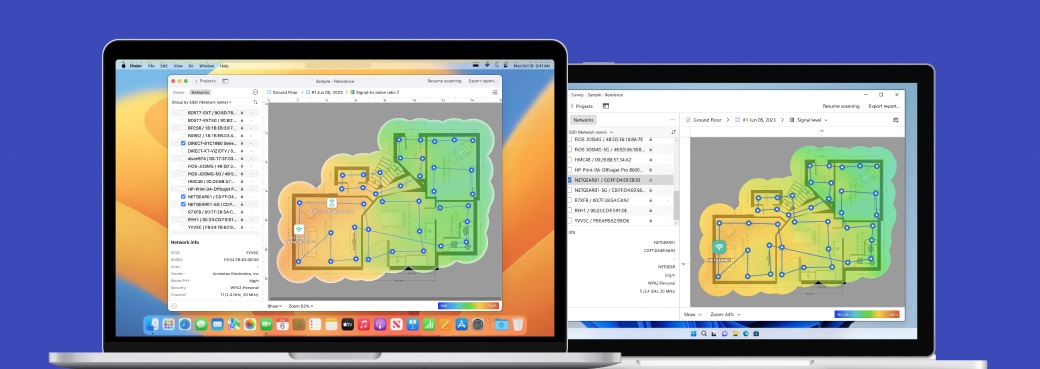
What sets NetSpot apart is how much each mode offers — not just for quick diagnostics, but for in-depth wireless analysis.
In Inspector Mode, you can instantly view key parameters like signal level, channel, band, BSSID, and security type across all visible networks. This is ideal for scanning crowded environments, spotting channel overlap, and identifying configuration issues on the fly.
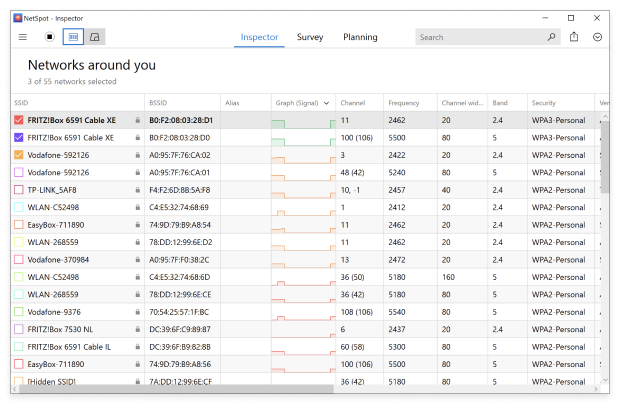
NetSpot Inspector Mode for Windows
Survey Mode goes much further, allowing you to build comprehensive WiFi heatmaps across dozens of visualizations. You can assess everything from signal-to-noise ratio and interference to band coverage, PHY mode, and upload/download speeds.
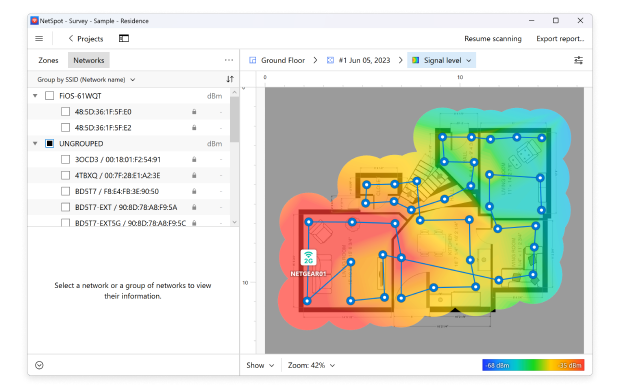
NetSpot Survey Mode for Windows
And for power users, NetSpot includes some handy extras — like integration with iPerf, so you can run active performance tests and get even deeper insight into your network’s real-world speed and stability.
Then there’s Planning Mode, one of NetSpot’s most powerful and unique features. With predictive WiFi planning, you can design a wireless network completely from scratch or test improvements to an existing setup — virtually and without deploying any hardware.
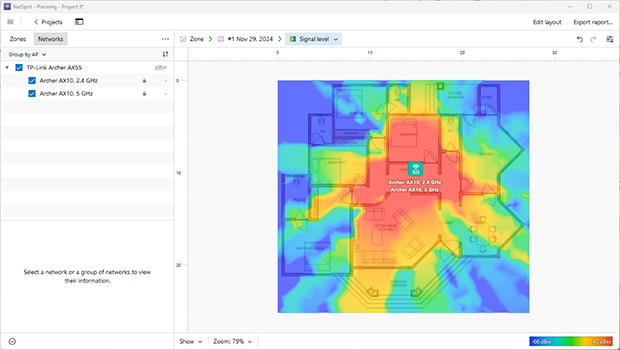
NetSpot Planning Mode for Windows
This lets you experiment with different layouts, optimize the number and placement of access points, and avoid overbuying equipment. It’s a smarter, faster way to build or upgrade a network — saving time, cutting costs, and helping you get the best performance possible from day one.
I tested each system by wandering through my house with a laptop running Netspot, an app that builds a “heat map” of Wi-Fi strength.
David Pogue • Yahoo Finance
Pros and Cons
-
Easy to use
-
Powerful features
-
WiFi strength heat maps
-
Great for both beginners and pros
-
Affordable
-
None
- Summary recommendation: Get NetSpot
Choice #2

InSSIDer
Available for Windows 11 and older.
Known as one of the best WiFi analyzer windows tools, inSSIDer has been making waves in the industry since 2007, offering a capable solution for visualizing your WiFi environment.
With inSSIDer, you can uncover essential information about your WiFi access points, such as the channel, signal strength, channel width, WiFi generation, maximum data rate, and security. This WiFi analyzer app for Windows can even reveal how neighboring WiFi networks impact your connectivity.
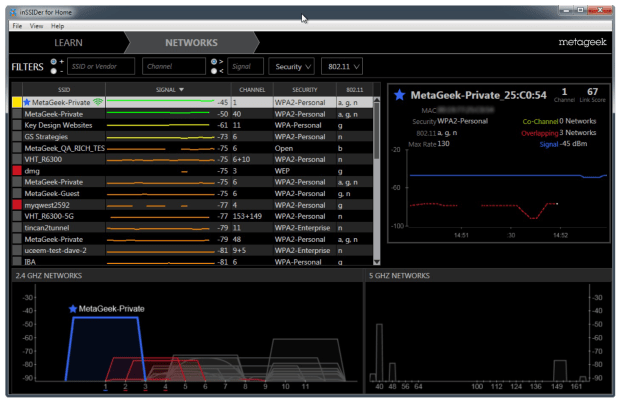
InSSIDer for Windows
After conducting an in-depth investigation of your WiFi, inSSIDer breaks down the results in plain English. It highlights what's working, what needs a little tweaking, and what requires immediate attention for faster and more efficient WiFi, making it easy to take action and improve your WifI performance.
Pros and Cons
-
Established product
-
Accuracy and reliability
-
Professional features
-
MetaGeek account is required to use the software
Choice #3

WiFi Analyzer
Available for Windows 11 and older .
WiFi Analyzer stands out as a free WiFi analyzer for Windows that offers a smooth, ad-free user experience. You can conveniently download it straight from the Microsoft Store. At its core, it is a tool designed with home users in mind, providing them with an intuitive and user-friendly interface that makes it easy to see WiFi channel distribution.
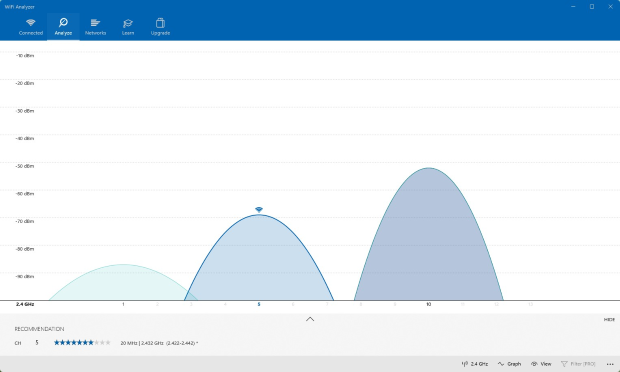
WiFi Analyzer
Extra features can be unlocked via in-app purchases, and they include live tile support, beeper for signal strength, filters, the ability to change signal strength borders, and more.
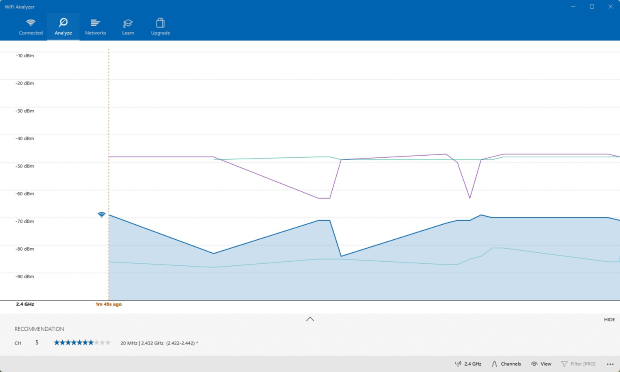
WiFi Analyzer
Being a native Windows app, WiFi Analyzer works runs great not just on traditional x86 and x64 PCs but also on modern Arm machines. Unfortunately, the last version was released in 2020, and it's not clear if another update will ever be released.
Pros and Cons
-
Great for beginners
-
Free
-
Available from Microsoft Store
-
Not for pros
-
Limited features
-
Hasn't been updated in some time
Choice #4

Vistumber
Available for Windows 10, Windows 8, Windows 7, Windows Vista.
Vistumber stands apart from many other WiFi analyzers thanks to its support for GPS and live Google Earth tracking. When Vistumber finds a WiFi network, it plots it on a map, showing its exact location as well as other information, such as encryption, strength, name, and so on.
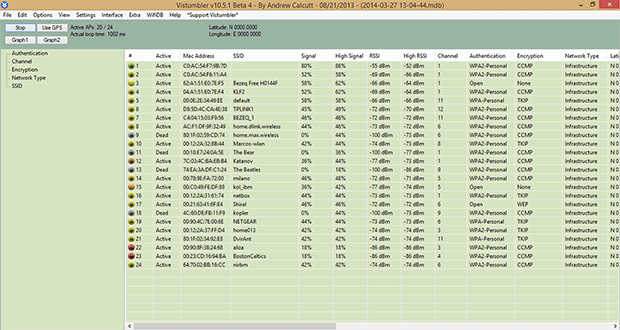
Vistumber
It’s intended for wardriving, the act of searching for WiFi wireless networks by a person in a moving vehicle, using a laptop or smartphone. Of course, you can also use to identify WiFi network in your home or neighborhood. Unfortunately, the outdated user interface makes the application quite difficult to use.
Pros and Cons
-
Google Earth integration
-
GPS support
-
Outdated user interface
-
Developers don't keep the changelog updated
Choice #5

Wireshark
Available for Windows, Linux, OS X, Solaris, FreeBSD, NetBSD, and many others.
Wireshark is a free and open source packet analyzer intended for troubleshooting and analysis of a variety of different communications protocols, including WiFi. Its main strengths are the scope of its features and thriving open source community.
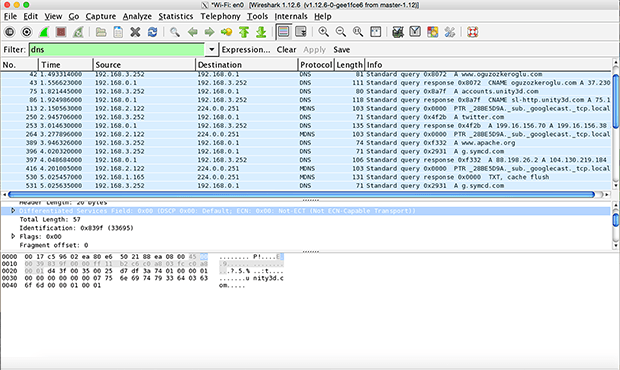
Wireshark
But unless you’re a seasoned IT expert, don’t expect to know how to use it to analyze your home WiFi right out of the box; there are entire training courses dedicated to helping pros use Wireshark.
Pros and Cons
-
Comprehensive features
-
Thriving, open source community
-
Support for plugins
-
Very difficult to use
How Windows WiFi Analyzers Can Improve Your Network Performance
As you've already noticed, Wi-Fi analyzer programs for Windows come in a wide variety, from very basic to advanced. But their goal is the same: to help you understand what's really going on with your wireless connection and how to finally fix it.
Simple tools show the basics: neighboring networks, signal strength, and channel load. This is quite sufficient if you simply need to find a free channel or check if the internet is reaching your kitchen.
Advanced analyzers, however, dig much deeper. They create Wi-Fi heatmaps, measure actual throughput, and identify sources of interference. This helps you not only pinpoint the problem, but also understand where exactly "dead zones" have formed, where to best relocate your router, and how to squeeze maximum speed out of large spaces. This is precisely where applications like NetSpot shine.
Some tools are tailored to the needs of professionals: they can intercept data packets, work with multiple access points simultaneously, or support integration with iPerf. Others, on the contrary, are designed for everyday users, with an intuitive interface that eliminates any unnecessary clutter that could confuse them.
Ultimately, choosing the best Wi-Fi analyzer for Windows depends entirely on your purpose. Setting up a home router? Simple statistics will be sufficient. Planning a network for an entire office or want to see a coverage map for your entire apartment? Then choose software with visualization and active scanning. The key is to choose the right tool for your specific task, and you'll see results in no time.
Conclusion
Over 15 years of working with wireless networks, I've learned one thing: there's no perfect tool "for everyone". The Windows software market is vast, and the choice always depends on your specific needs. In this guide, I've compiled the programs that have proven their reliability over the years and truly make your life easier, rather than just sitting at the top of downloads.
Some of them are a lifesaver when you need to quickly check your signal "here and now". Others are heavy artillery with heat maps, real-time speed measurements, and network planning for the future.
It's 2026, so my main advice: don't buy software that's stuck in the past. Look for something that runs smoothly on Windows 10 and 11, is regularly updated, and is compatible with modern hardware. Before downloading, don't be lazy and check the version history — this will immediately tell you whether a project is alive or abandoned.
In my practice, I most often pull out NetSpot. I love how it combines a clear interface with professional-grade features — golden mean that saves time.
And remember: whether you're setting up a router in a one-room apartment or building a network in a huge office, a good analyzer is your best ally. Not just on the first day of installation, but also later, when something goes wrong. Choose wisely, and your network will respond with reliable speed and stability without any unnecessary fuss.
SO, WE RECOMMEND

NetSpot
WiFi analyzer app runs on a MacBook (macOS 11+) or any laptop (Windows 7/8/10/11) with a standard 802.11be/ax/ac/n/g/a/b wireless network adapter. Read more about the 802.11be support here.
Best WiFi Analyzer Windows Apps FAQs
Why Do You Need a WiFi Analyzer App?
To put it simple, you need a WiFi analyzer app (e.g. NetSpot) to make your WiFi network connection perfect. Or as close to perfection as it gets. You want to be able to walk into every corner of your apartment, house, or office building and never experience any issues with WiFi. A high-quality WiFi analyzer tool will help you find the best spot for your router and access points so you can obtain a wireless coverage your network deserves.
Read more: What is WiFi analyzer and how to perform a WiFi analysis using one.
What exactly does a Wi-Fi analyzer on Windows do?
It turns invisible radio waves into easy-to-understand data. NetSpot scans the space and produces a complete list of all the networks in the area, along with all their technical details.
However, the standout feature of NetSpot is its visual heatmaps. You don't have to guess by signal strength "bars" in the corner of the screen; you see the real coverage of your home. It immediately becomes clear where the signal is dropping and why the internet is slow in the far corner.
With a heatmap in hand, you'll find the ideal location for your router on the first try. No more guesswork — just precise calculations and a stable connection where you need it.
What is the best WiFi analyzer software for home networks on Windows?
For home networks, NetSpot is highly recommended due to its user-friendly interface and powerful analysis features. It helps you find the best spot for your router and ensures strong signal coverage throughout your space.
What apps offer WiFi signal strength heat maps?
NetSpot is the leading player here. It's perhaps the only professional analyzer for Windows that's equally intuitive for both system administrators and the average user.
Instead of cluttered tables, you get a clean, intuitive interface. This combination of simplicity and powerful features is what earns the program constant praise from both industry-leading tech resources and real users. With NetSpot, creating a detailed coverage heatmap transforms a complex engineering task into a clear, step-by-step process.
Does Windows 10 have a Wi-Fi Analyzer?
While Windows 10 does not have a built-in WiFi analyzer, there are several third-party applications available that can perform WiFi analysis. These apps can be downloaded and installed on your Windows 10 device to help you understand your WiFi environment, identify problems, and optimize network performance.
Is NetSpot really free?
NetSpot is a freemium WiFi analytics software, so it can be used for free but some features are available only in the premium version. The good news is that the free version of NetSpot provides users with the essential tools needed to scan and assess WiFi networks, offering a broad range of capabilities such as network discovery and basic analysis of WiFi signal strength.
What is the best free Wi-Fi analyzer for Windows?
If you’re looking for a free WiFi analyzer for Windows in 2026, the free version of NetSpot and WiFi Analyzer are excellent choices. They provide essential tools for analyzing signal strength and improving your home WiFi network.

Get NetSpot for Free
Wi-Fi Site Surveys, Analysis, Troubleshooting runs on a MacBook (macOS 11+) or any laptop (Windows 7/8/10/11) with a standard 802.11be/ax/ac/n/g/a/b wireless network adapter. Read more about the 802.11be support here.